
A map with two thousand pins answers one question well: where is everything? It is much worse at the questions that come next. Which of these customers renewed this year? Which job sites are within a 20-minute drive of the depot? Which members live inside the new sales territory?
With ZeeMaps’ new Filter Bar, every map becomes a searchable map. Filter the pins by any field, by distance, by drive time, or by a highlighted area — and combine those filters in one place. Results update on the map as you type, and the pins that do not match simply step aside.
Moreover, the filter bar is there for the people you share the map with, not only for you. It sits above the map in the editor and on the map’s viewer page, and you can include it in the map you publish in your own website, so a colleague — or a visitor — can narrow the map down to their own territory without changing anything on it.
The screenshots in this post use our Fall Foliage Map from the World of Maps gallery as the example: scenic autumn destinations across the U.S., each tagged with its region and its typical peak-color window.
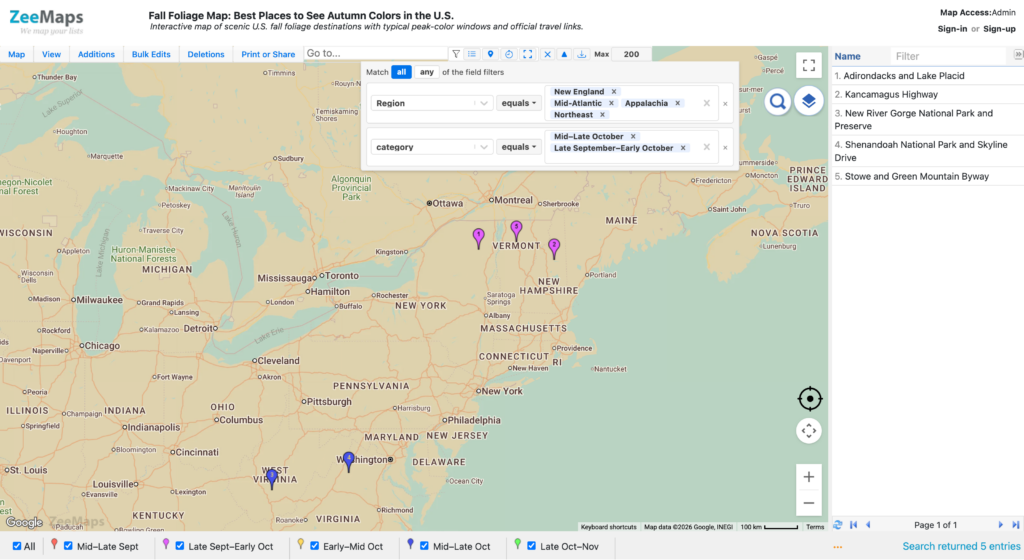
What Is a Searchable Map?
A searchable map lets the person looking at it narrow thousands of pins down to the ones they need, without editing the map or exporting a spreadsheet. In ZeeMaps, the filter bar is what makes a map searchable.
The filter bar is a row of small controls above your map. We call them filter chips. Each chip is one condition, written the way you would say it: Status equals Active. Revenue greater or = 50,000. Within 10 miles of Denver. Add chips, and the map shows only the markers that satisfy them.
There are four kinds of chips:
- Field filters test the Name or any custom field on your markers — text, numbers, currencies, percentages, and dates.
- Distance filters keep the markers within a radius of an address, or of a point you click on the map.
- Drive-time filters keep the markers reachable within a number of minutes by car.
- Area filters keep the markers inside a region you have highlighted on the map — a ZIP code, county, state, or a shape of your own.
Every chip runs the moment you change it. There is no Search button to press and no results page to leave the map for. The matching markers stay on the map and in the list view, and you can download them as a spreadsheet.
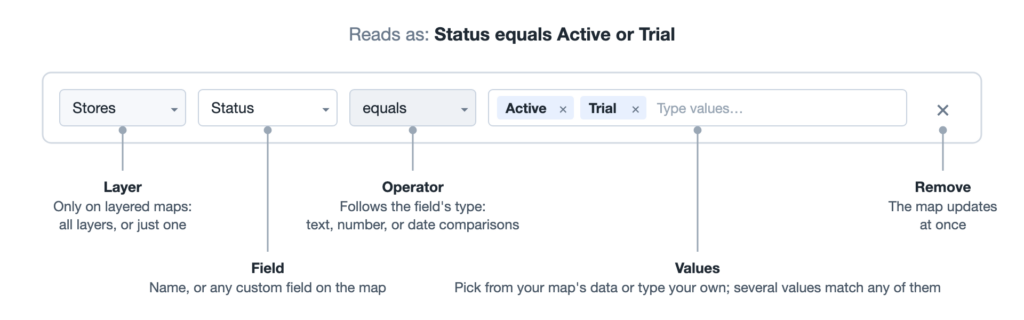
Filter by Any Field
- Find the funnel icon in the ribbon above the map and click the field button next to it (the list icon). A new chip appears.
- Pick a field. The menu lists Name and every custom field on your map.
- Choose an operator — contains, equals, not equals, starts with, and so on.
- Enter one or more values. Click the value box to see values already on your map, or start typing to narrow them down. Choose several values and the chip matches any of them.
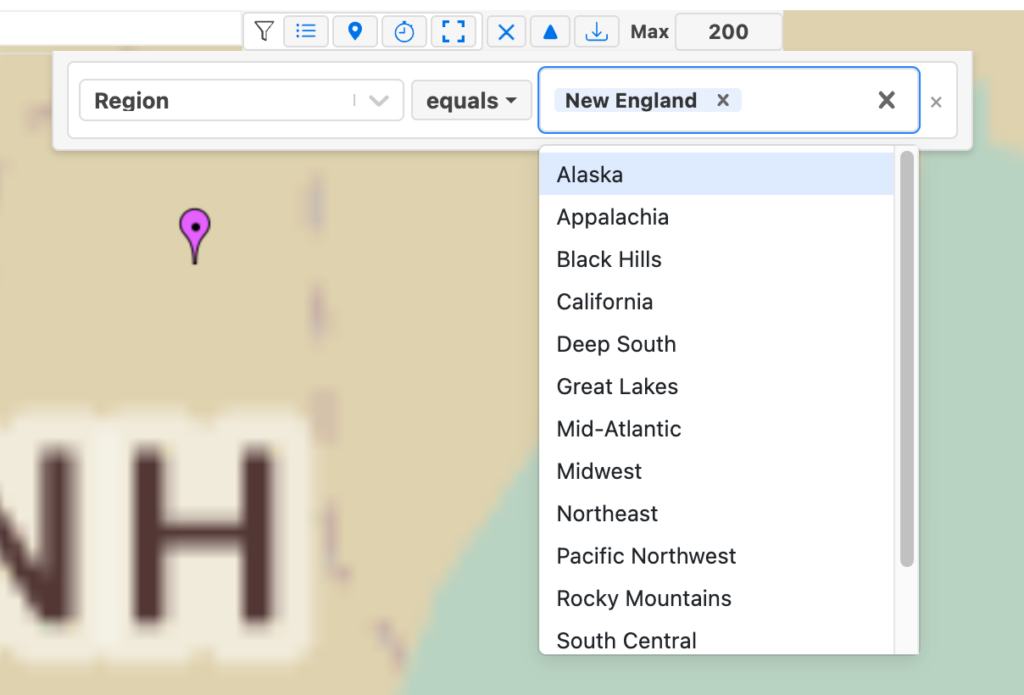
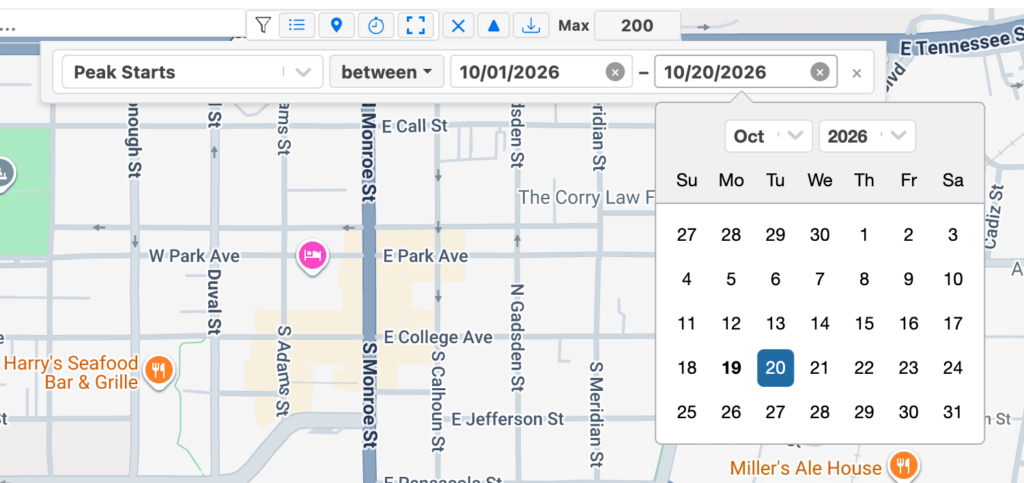
Chips understand your field types. When a field is set to Number, Currency, or Percentage in Map → Marker Fields, the chip offers numeric comparisons — less or =, greater or =, and between — and compares the numbers themselves, so 9,500 comes before 10,000 as it should. A Date field gets a date picker with the same comparisons, so “between January 1 and March 31” takes two clicks.
| Field type | Operators in the chip | Value input |
|---|---|---|
| Text, Long Text, Email, URL, Phone, ID/Code, and Name | contains, equals, not equals, less or =, greater or =, starts with, ends with | One or more values, with suggestions from your map |
| Number, Currency, Percentage | equals, not equals, less or =, greater or =, between | A number (commas and currency symbols are fine) |
| Date | equals, not equals, less or =, greater or =, between | A date picker |
Tip: if a field holds numbers or dates but the chip only offers text operators, open Map → Marker Fields and set the field’s type. The chip picks up the change immediately.
Match All, or Match Any
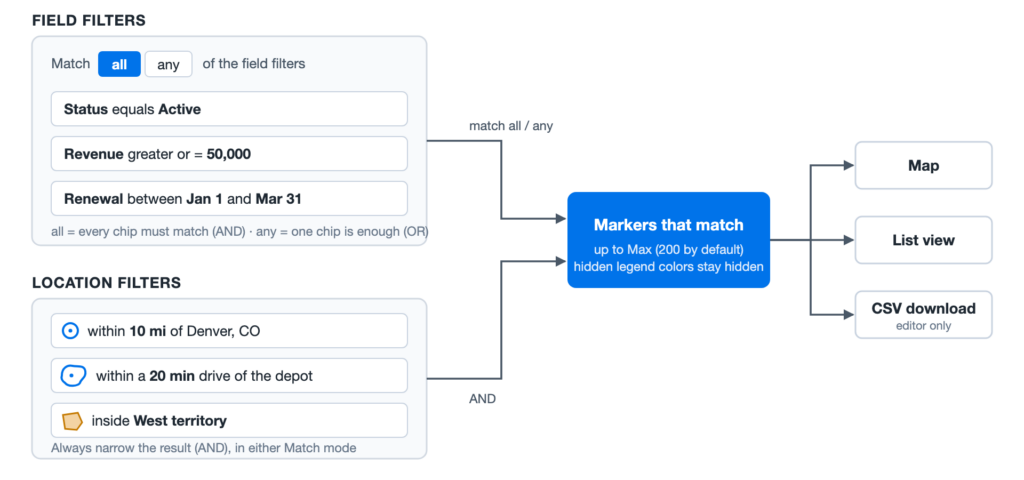
As soon as you have two or more field chips, a Match switch appears above them. Match all keeps the markers that satisfy every field chip. Match any keeps the markers that satisfy at least one — for example, Status equals Prospect or Last Contact less or = June 1.
Location filters — distance, drive time, and area — always apply on top of the field chips, whichever mode you choose. As a result, “customers in the West territory who are either prospects or lapsed” does exactly what it says.
Filter Within a Distance
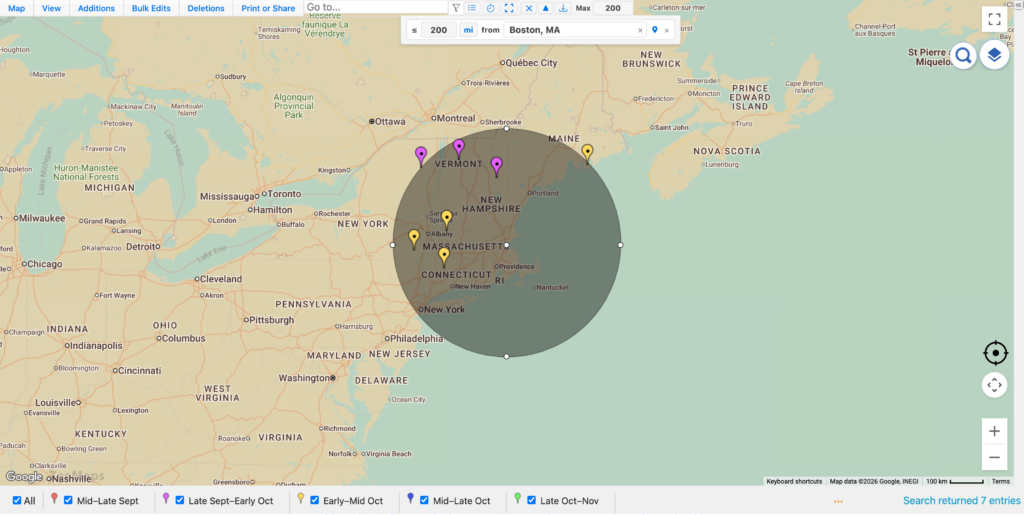
Click the pin button in the filter bar to search by radius. Type an address or place name and pick it from the suggestions, or click the chip’s map-pin button and then click anywhere on the map. Set the radius, in miles or kilometers.
A circle appears on the map showing the search area. It is a live radius map: drag its center to move the search, or drag its edge to resize it, and the chip and the results follow.
Filter Within a Drive Time
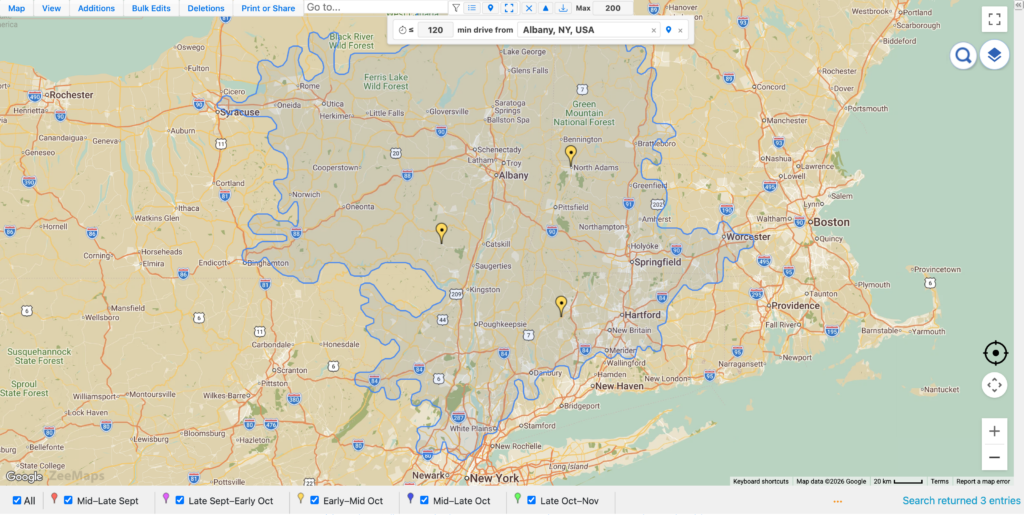
Straight-line distance is not how customers travel. Click the stopwatch button to add a drive-time chip, choose a location the same way, and enter the number of minutes — up to 120. ZeeMaps computes the drive-time area over the real road network, draws it on the map, and keeps only the markers inside it. It is the same engine behind Drive-Time Areas, applied as a filter.
The first search from a new location takes a moment while the area is computed; after that, the same search is instant.
Filter Inside a Highlighted Area
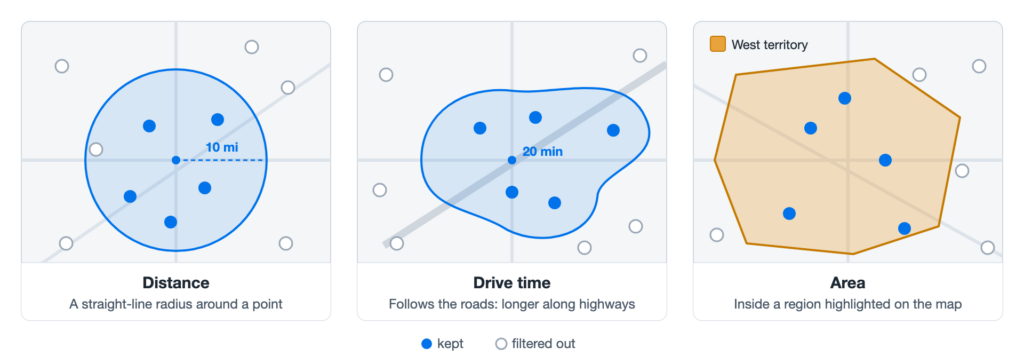
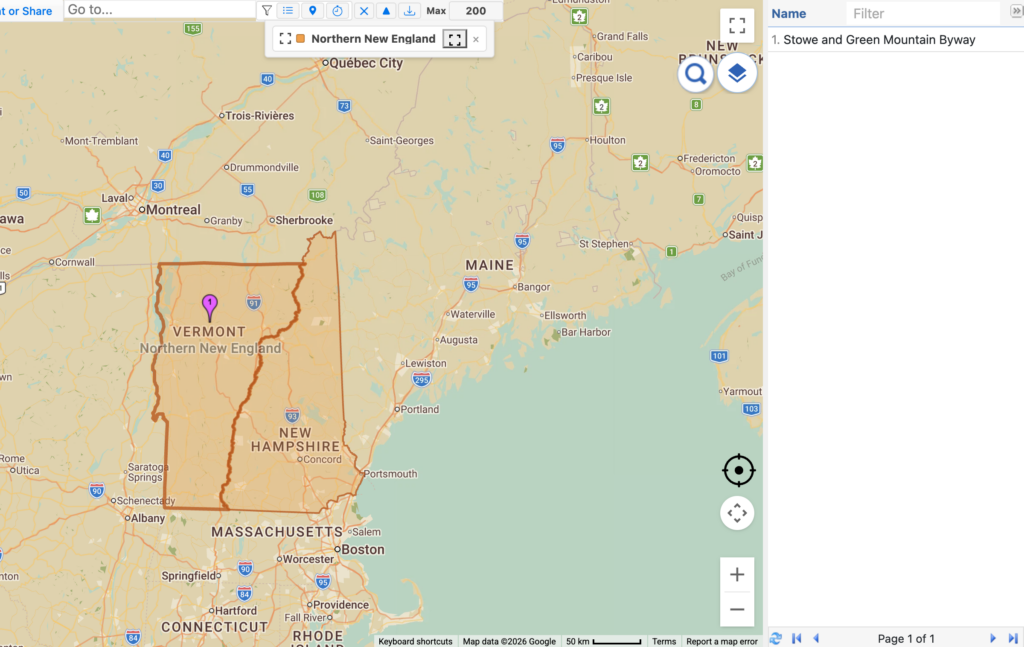
If your map has highlighted regions — ZIP codes, counties, states, or shapes you drew — you can filter to the markers inside one of them. Click the area button, then click a region on the map. The chip picks up the region’s color and legend label so you can see which one is selected, and the region stays highlighted while the filter is active.
No regions on the map yet? Add some from Additions → Highlight Regions, or switch existing ones on from the legend, then add the area chip. Circles drawn with Highlight Regions work too.
Filters on Layered Maps
On a map with layers, each field chip gains a layer selector. Leave it at All layers to search everything, or pick one layer to search only its markers — the field menu switches to that layer’s fields. This works for layers included from other maps as well.
Download What You Found
Once a filter is in place, click the download button in the filter bar to save the matching markers as a CSV spreadsheet. It is the fastest way to turn “everyone within 15 minutes of the venue” into a call list.
The Max box next to it limits how many markers a filter returns. It starts at 200 to keep large maps quick; raise it — up to 10,000 — when you want every match.
Your Filters Stay Put
Filters are remembered per map in your browser. Close the map and come back tomorrow, and your chips — and the filtered view — are exactly as you left them. Click the ▲ button to tuck the chips out of the way; the bar then shows a count, such as “3 filters”, so you always know a filter is active. Click ✕ to clear them all and bring every marker back.
The filter bar also respects your legend: a color you have hidden in the legend stays hidden in the results.
Embed a Searchable Map in Your Website
The filter bar is not limited to zeemaps.com. When you publish a map in your own website, you can include the filter bar in the embedded map, and your visitors can search it right there on your page.
- Open the map in the editor and choose Print or Share → Publish in Website.
- Tick Include filter bar. The embed code updates to include it.
- Copy the code into your page, as before. Nothing else changes: the map keeps its legend, list, and other options.
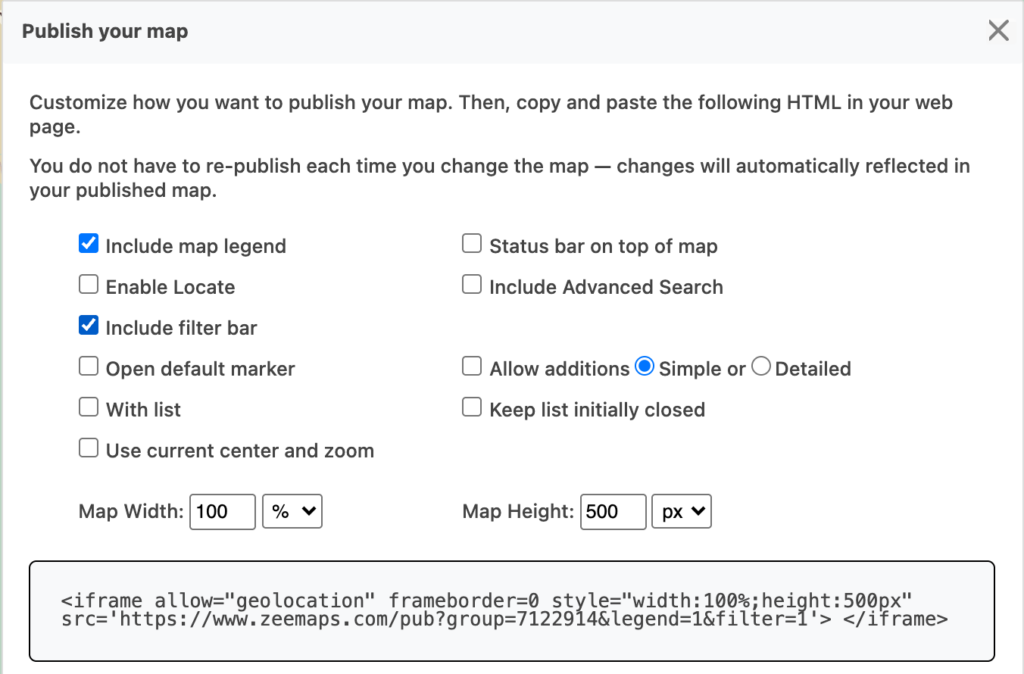
Visitors get the same chips you have: filter by any field, by distance, by drive time, or by a highlighted area. Each visitor’s filters live in their own browser, so nobody changes what the next visitor sees, and nothing on the map itself changes. Already have a map embedded? Add &filter=1 to the map address in your iframe code and the bar appears — there is no need to re-publish.
Our Fall Foliage Map page in the World of Maps gallery is embedded this way, so you can try the filter bar there.
What Can You Do with a Searchable Map?
- Sales: show a rep only their accounts — Owner equals Dana, Status not equals Closed — and let them download the list.
- Field service: find every open job within a 30-minute drive of the technician who just freed up.
- Real estate: narrow listings to Price between 400,000 and 600,000 within 15 minutes of a school.
- Membership organizations: pull the members inside one ZIP code or county for a local event.
- Events and logistics: list every venue or stop with a date in the next two weeks.
- Retail: show only the stores with Sales greater or = 1,000,000, then color them by value.
- Websites: embed a searchable store finder or member directory in your own site, and let visitors keep only the locations within 25 miles of their town.
Related articles:
Good to Know
- The filter bar is available in desktop browsers: in the map editor, on the map’s viewer page, and on maps you publish in your website with Include filter bar switched on. It works on your existing maps — there is nothing to re-import.
- Filters live in your browser. Sharing a link shares the map, not your current filters — each viewer sets their own.
- Add as many field chips as you like; one distance, one drive-time, and one area chip apply at a time.
- The classic Search dialog under View → Search is still there, and its Reset button clears the filter bar as well.
Final Thoughts
A map is only as useful as the questions it can answer. A searchable map answers the ones that matter: with the filter bar, “where is everything?” becomes “show me exactly these” — by field, by distance, by drive time, or by area, in any combination.
Open any of your maps, click the funnel above the map, and ask it a question.